June 15, 2026
- AI Technology
- Interior Design
Foursite Pro Editor: Full Floor Plan Control for Designers | VirtualSpaces
Hemanth Velury
CEO & Co-FounderWhen One Click Is Not Enough: The Foursite Editor and Workflow Tools Built for Precision
The two previous pieces in this series covered what happens when you let the AI do the heavy lifting: ArchiSculpt converting a 2D floor plan to a navigable 3D model in minutes, auto-furnishing a room with one click, generating a photorealistic styled interior in seconds. Those features are genuinely fast, and for most client presentations they will be enough.
But there are moments in a design project when fast is not the point. When a client needs a wall moved 18 inches to the left to accommodate a structural column. When the furniture layout the AI placed needs a custom piece from the designer's own specification list. When a floor plan has been through four layout iterations and the designer needs to compare all of them without rebuilding anything. When the render that needs to go to a developer tomorrow has to match spec exactly.
For those moments, Foursite has a full set of precision editing and workflow tools that sit alongside the AI. They are the third layer of the platform, and they are designed for the designer who knows exactly what they want and needs the tool to keep up. This is what is coming in that layer.
The Pro Floor-Plan Editor: Draw Anything, Scale Everything
At its core, the pro floor-plan editor in Foursite is a CAD-style drawing environment that runs in the browser. No install, no plugin, no file export to a separate application. It lives in the same tab as the 3D viewer and the AI tools, so switching between editing the plan and walking through the 3D result is instant.
What the editor lets you draw:
-
Straight walls: any length, any direction, snapped to grid or placed freehand
-
Curved walls: arcs and bends for non-rectangular rooms or architectural details
-
Doors and windows: placed per opening, with swing direction for doors and orientation for windows
-
Rectangular rooms: drawn quickly by dragging a box to set dimensions
-
Freeform rooms: any polygon shape, for irregular floor plans or non-standard layouts
Every element drawn in the editor flows immediately into the 3D model. Add a wall, and it appears in 3D. Move a door, and the opening shifts in the rendered scene. The floor plan and the 3D model are not two separate files that need to be kept in sync. They are the same project, and editing one updates the other in real time.
For interior designers who receive floor plans from architects and need to adapt them to a client's brief, this means changes happen in the same environment where the client presentation lives. You do not export the plan, open it in a second application, make the change, re-import it, and wait for the 3D to rebuild. You draw the change and the 3D is already there.
For architects working on residential projects who want to test layout alternatives quickly, the editor supports the kind of rapid iteration that normally requires dedicated CAD software. The difference is that every iteration here is immediately viewable as a 3D walkthrough, not a flat drawing waiting for a separate render.
The editor also handles the detail level that matters for real project work. Live dimension annotations display measurements as you draw, so you always know the exact size of what you are placing. A measure tool lets you check distances between any two points on the plan. Undo and redo work across every action, so there is no penalty for exploring.
Dimension Calibration and the CAD Block Catalogue: Working to Real Scale
A floor plan that is not calibrated to real-world dimensions is a visualization tool. A floor plan that is calibrated is a specification tool. The difference matters when a client is choosing furniture, when a contractor is building to plan, or when a developer needs to confirm that a unit layout meets the square footage they committed to.
Foursite's dimension calibration feature lets you set real-world scale from a single known measurement. Identify a wall with a known length, set that length in the calibration tool, and every other element in the plan rescales automatically. Walls, rooms, furniture, openings: all adjusted proportionally from that single reference. The live dimension annotations update to reflect real measurements throughout.
Once the plan is calibrated, the CAD block catalogue becomes a precision placement tool. The catalogue is a searchable library of top-down furniture symbols: sofas, beds, dining tables, office chairs, kitchen appliances, bathroom fixtures. Drag any block from the catalogue onto the canvas and it places at true scale, sized correctly for the calibrated plan. A king bed lands at 76 by 80 inches. A standard dining table lands at the right footprint for the number of seats. The furniture in the plan is the furniture that will actually exist in the space.
From there, each piece is fully editable by hand. Move it, resize it, rotate it, flip it, rename it. If a client specifies a particular sofa with non-standard dimensions, you enter those dimensions and the block adjusts. If a room works better with the bed rotated 90 degrees, that takes a single action. The CAD catalogue gives you a fast starting point; the editing tools give you exact control from there.
For interior designers who work with client-supplied furniture specifications, this feature closes a workflow gap that has existed for years. The furniture in the VirtualSpaces floor plan is no longer a decorative approximation. It is the actual spec, placed at the actual scale, in the actual room. When that floor plan converts to a 3D render, the proportions are correct because the source data was correct.
Live 3D Picture-in-Picture: Edit the Plan and Watch the Space Update
One of the friction points in any floor plan workflow is the context switch: you make a change in the 2D editor, then navigate to the 3D view to see what it looks like, then navigate back to make another change. On a simple plan with a few edits, this is manageable. On a complex plan with multiple layout iterations happening in a single session, it compounds fast.
Foursite's live 3D picture-in-picture feature removes that switch entirely. A floating 3D viewer hovers over the floor-plan editor in a draggable, resizable window. As you draw walls, place furniture, and adjust the plan, the 3D model updates in real time in that window. You see the plan and the 3D space simultaneously, in the same view, without navigating away from either.
The practical effect of this is significant for how a design session actually runs. When a client is in the room and you are adjusting a layout based on their feedback, you do not need to switch views to show them what the change looks like in 3D. You make the change in the editor and they watch it happen in the floating viewer. The feedback loop that usually spans multiple navigation steps collapses into a single action.
For designers who do a lot of iterative layout work, this changes the pace of a session. You stay in the editing mindset rather than constantly switching to a preview mindset. The 3D view becomes ambient context rather than a destination you have to navigate to. That shift sounds small, but across a full design session it adds up to significantly more work completed and significantly fewer moments of "let me show you what that looks like" becoming a navigation exercise.
Saved Layouts: Design Options Without Starting Over
Client presentations often require showing multiple layout options for the same room. Option A has the sofa facing the window. Option B has the sofa anchoring a conversation zone away from it. Option C uses a sectional instead of a standard sofa and redistributes everything around it. Traditionally, producing those three options means either maintaining three separate files or rebuilding the layout from scratch each time the client wants to revisit a direction they passed on.
Foursite's saved layouts feature keeps multiple furniture arrangements per room in the same project. Save a layout, name it, and continue iterating. Save another version, cycle back to the first, re-apply it, compare them side by side. The layout you saved last week loads automatically the next time you open the project. Nothing is lost, nothing needs to be rebuilt.
What saved layouts make possible in practice:
-
Present two or three layout options to a client in a single session without file juggling
-
Revisit a direction a client dismissed in an earlier meeting without reconstructing it from memory
-
Keep a working layout and an approved layout in the same project for reference during installation
-
Name layouts clearly so a collaborator joining the project can navigate the design history
-
Delete versions that are no longer relevant without affecting the rest of the project
For designers managing multiple clients or multiple units within a development project, saved layouts mean design options are an asset that accumulates rather than work that disappears. Every direction you explored is preserved. Every client response to every option is something you can return to. The project history is the design record.
Unified Undo/Redo, Autosave, and Gallery: The Workflow That Does Not Lose Work
Three features in Foursite's workflow layer do not announce themselves in client presentations, but they are the ones that make the difference between a tool you can rely on and one you approach carefully.
Unified undo/redo maintains a single history stack across geometry and furniture, across tabs. Move a wall, place a sofa, rotate a chair, change a room shape: all of those actions are in the same stack, and stepping back through them works exactly as expected. There is no separate undo history for the floor plan editor and the furniture placement tool. One stack, one history, full control. For designers who explore quickly and sometimes need to step back several actions, this is the difference between a tool that supports creative iteration and one that requires caution.
Autosave means edits persist automatically throughout a session. There is no save button to remember, no prompt when you close the tab, no lost work if the browser refreshes. The project state at any given moment is the state that will be there when you return. For designers working across multiple sessions on a single project, this is a baseline expectation that Foursite meets without requiring any action.
The gallery saves every AI render automatically as it is generated. Every photoreal image produced during a styling session, every AI redesign from a client meeting, every interior design render created during the project: all stored in the project gallery, labeled and accessible. Nothing needs to be manually exported or saved before closing. When a client asks three weeks later for the render from the second meeting, it is in the gallery.
Together, these three features remove a category of anxiety that designers carry through every session with most tools: the fear of losing work. That fear changes how you use a tool. When you know that nothing will be lost and everything can be undone, you explore more freely, iterate more quickly, and spend less time managing files and more time designing.
What the Full Platform Looks Like
Across three pieces, we have covered the complete Foursite feature set coming to the platform. It is worth stepping back and looking at how the layers fit together:
| Layer | Feature | What it removes |
|---|---|---|
| Foundation | ArchiSculpt AI: 2D to navigable 3D | The rebuild step: work from any existing floor plan |
| Foundation | Real-time 3D visualization: SSGI, walkthrough, lighting | The render farm: photoreal output lives in the browser |
| AI Automation | AI Auto-Furnish: one-click room layouts | The staging step: clearance-aware furniture in seconds |
| Styling | Generative AI redesign: style, palette, finishes in seconds | The render cycle: iterate on look and feel in the meeting |
| Styling | Material and paint library: one-click floor and wall finishes | The imagination gap: clients see finishes in their actual room |
| Styling | Custom palettes and door/window models | The brand gap and the hardware placeholder problem |
| Precision | Pro editor: walls, curves, rooms, CAD annotations | The software handoff: edit the plan in the same tab as the 3D |
| Precision | CAD block catalogue and dimension calibration | The scale gap: furniture and rooms at real-world dimensions |
| Precision | Live 3D picture-in-picture | The context switch: see plan and 3D simultaneously |
| Workflow | Saved layouts per room | The rebuild cost: design options preserved, not reconstructed |
| Workflow | Unified undo/redo, autosave, gallery | The lost work problem: every action reversible, every render saved |
The complete platform runs in a single browser tab, with no installs, no plugins, and no file handoffs. A 2D floor plan or architectural blueprint goes in. A navigable, furnished, styled, photorealistic 3D space comes out. Every step from convert-floor-plan-to-3D to finished client presentation happens inside VirtualSpaces's platform.
For interior designers, the implication is a significant compression of the pipeline: less time in software handoffs, less time waiting for renders, less time reconstructing work, and more time doing the actual creative work of designing spaces for the people who will live in them.
For residential developers, it means pre-sales visualization, unit-by-unit styling, and floor plan iteration all happen at a pace that matches the pace of the project rather than the pace of a render queue.
For architects presenting residential projects, it means the client experience of reviewing a design shifts from reviewing a 2D drawing to walking through a 3D space, in the same meeting where the design decisions need to be made.
What to Do Now
All of these features are coming to Foursite. The platform is in active development. If your practice depends on presenting residential spaces to clients, on moving from blueprint to 3D to approval faster, or on giving clients a visualization experience that matches the quality of the design work you do, it is worth getting in early.
The gap between what a designer sees and what a client understands has been the central problem in residential design visualization for decades. VirtualSpaces is building the platform that closes it. These three layers of features are how.
Recommended for you

August 19, 2026
The End of the Model Home? 3D Changes the Math | VirtualSpaces
HHemanth Velury
CEO & Co-Founder
August 17, 2026
Designing Spaces That Actually Get Built | VirtualSpaces
HHemanth Velury
CEO & Co-Founder
August 12, 2026
Designing Homes for the Stuff People Actually Own | VirtualSpaces
HHemanth Velury
CEO & Co-Founder
August 07, 2026
Floor Plan to Bill of Materials: The 3D Model as Data | VirtualSpaces
HHemanth Velury
CEO & Co-Founder.png&w=1080&q=75)
August 05, 2026
Designing Homes for How People Actually Live | VirtualSpaces
HHemanth Velury
CEO & Co-Founder
August 03, 2026
Honest by Design: Trust in AI Real Estate Imagery | VirtualSpaces
HHemanth Velury
CEO & Co-Founder
July 29, 2026
Kitchen and Bath: The Two Rooms That Decide Resale | VirtualSpaces
HHemanth Velury
CEO & Co-Founder
July 27, 2026
Why Empty Rooms Don't Sell: Virtual Staging | VirtualSpaces
HHemanth Velury
CEO & Co-Founder
July 24, 2026
The Quiet Sustainability Win of Deciding in 3D | VirtualSpaces
HHemanth Velury
CEO & Co-Founder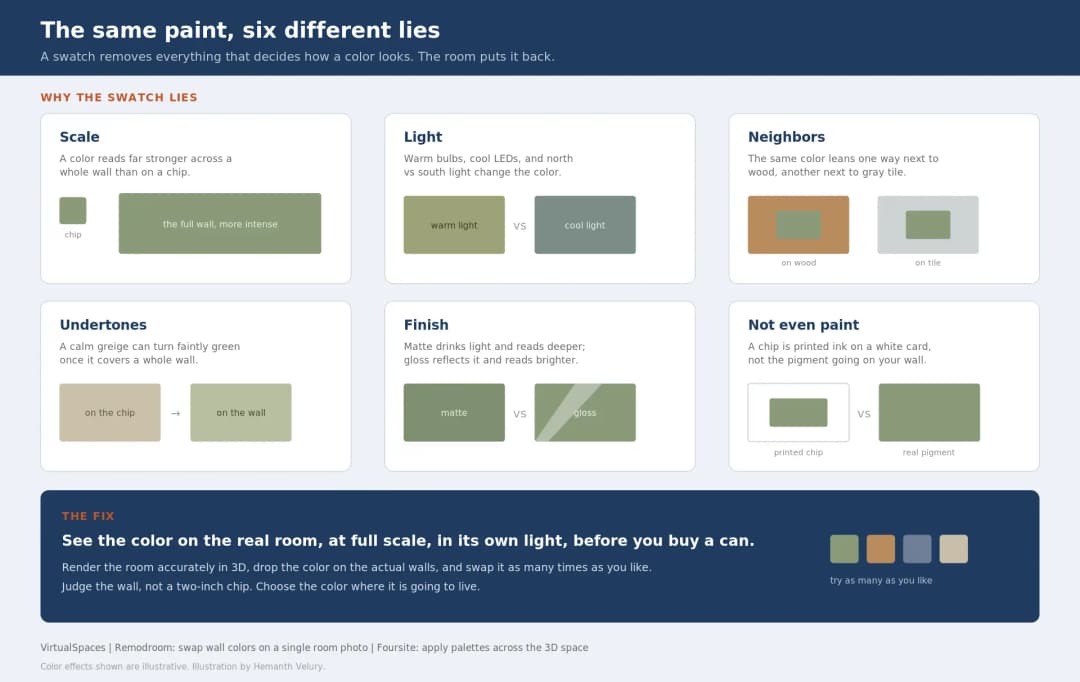
July 22, 2026
Why Paint Swatches Lie: Test Color in 3D First | VirtualSpaces
HHemanth Velury
CEO & Co-Founder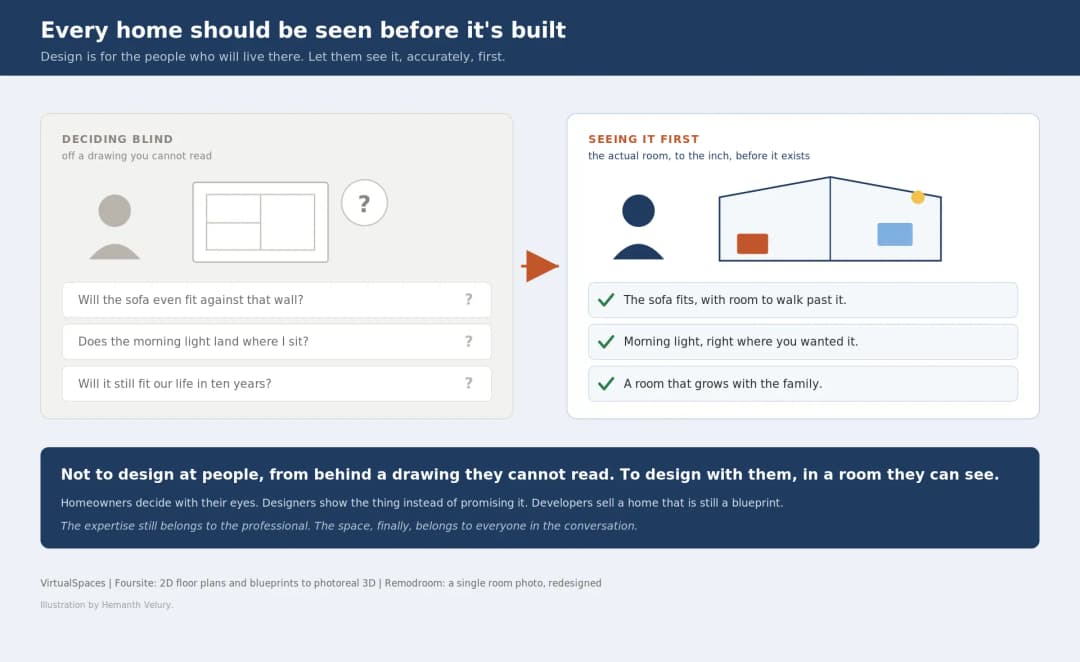
July 20, 2026
Why Every Home Should Be Seen Before It's Built | VirtualSpaces
HHemanth Velury
CEO & Co-Founder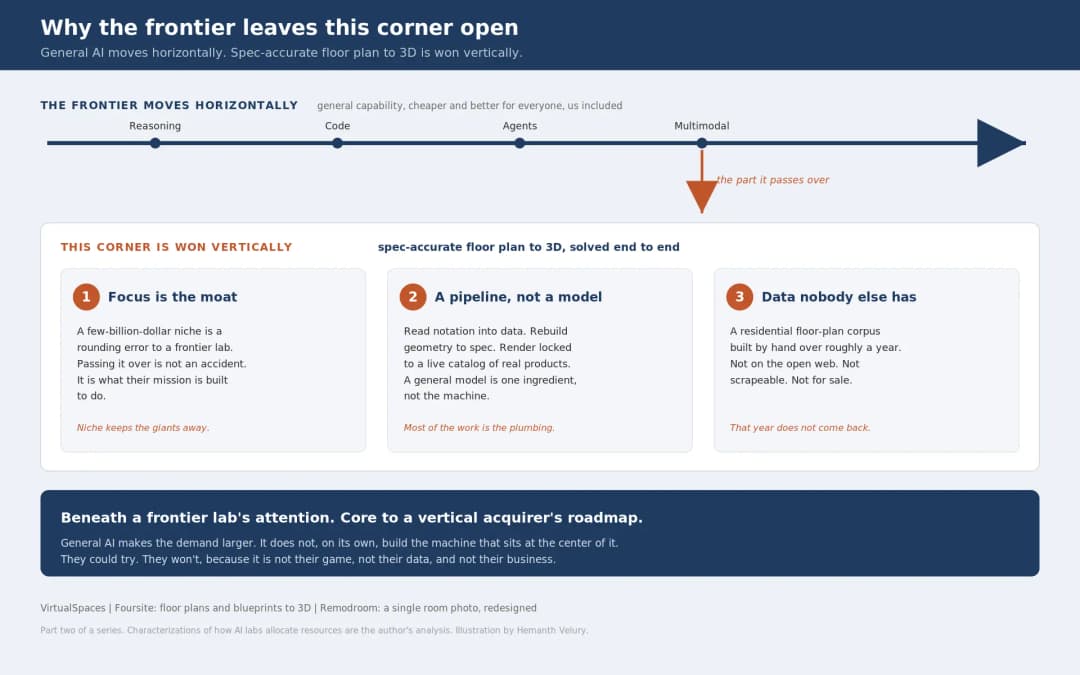
July 17, 2026
Why Big AI Labs Won't Build Floor Plan to 3D | VirtualSpaces
HHemanth Velury
CEO & Co-Founder
July 15, 2026
How We Solve Floor Plan to 3D, Accurately | VirtualSpaces
HHemanth Velury
CEO & Co-Founder
July 13, 2026
Designing Homes That Age With the People in Them | VirtualSpaces
HHemanth Velury
CEO & Co-Founder
July 10, 2026
Designing Spaces for How Light Actually Moves | VirtualSpaces
HHemanth Velury
CEO & Co-Founder
July 08, 2026
Designing Homes for Every Life Stage in 3D | VirtualSpaces
HHemanth Velury
CEO & Co-Founder
July 06, 2026
Build an Interior Design Portfolio Without Clients | VirtualSpaces
HHemanth Velury
CEO & Co-Founder
June 26, 2026
AI Interior Design: Full 3D Workflow in One Platform | VirtualSpaces
HHemanth Velury
CEO & Co-Founder
June 24, 2026
Scope Creep in Interior Design: How AI Visualization Fixes It | VirtualSpaces
HHemanth Velury
CEO & Co-Founder
June 22, 2026
What Buyers See on a Floor Plan: Your Biggest Sales Problem | VirtualSpaces
HHemanth Velury
CEO & Co-Founder
June 19, 2026
Small Design Studios vs Big Firms: The AI Advantage | VirtualSpaces
HHemanth Velury
CEO & Co-Founder
June 17, 2026
After the Mood Board: AI Interior Visualization | VirtualSpaces
HHemanth Velury
CEO & Co-Founder
June 12, 2026
AI Interior Design: Style Any Room in Seconds with Foursite | VirtualSpaces
HHemanth Velury
CEO & Co-Founder
June 10, 2026
Foursite: Floor Plan to 3D Walkthrough in Minutes | VirtualSpaces
HHemanth Velury
CEO & Co-Founder
June 08, 2026
Win More Pitches With AI Renders Before the Meeting | VirtualSpaces
HHemanth Velury
CEO & Co-Founder
June 05, 2026
From Floor Plan to Finished Room: What AI Now Makes Possible | VirtualSpaces
HHemanth Velury
CEO & Co-Founder
June 03, 2026
The Interior Design Brief Is Broken. AI Fixes It | VirtualSpaces
HHemanth Velury
CEO & Co-Founder
June 01, 2026
Pre-Construction Home Sales: AI Interior Visualization Guide | VirtualSpaces
HHemanth Velury
CEO & Co-Founder
May 30, 2026
Interior Design Principles: Applied with AI | VirtualSpaces
HHemanth Velury
CEO & Co-Founder
May 28, 2026
Designing Spaces for People, Not Blueprints | VirtualSpaces
HHemanth Velury
CEO & Co-Founder
May 26, 2026
The Future of Interior Design: Closing the Visualization Gap with Foursite and Remodroom | VirtualSpaces
HHemanth Velury
CEO & Co-Founder
May 18, 2026
How AI Visualization Upgrades Property Data Platforms | VirtualSpaces
HHemanth Velury
CEO & Co-Founder
May 14, 2026
How AI-First Insurers Can Use 3D Property Data to Transform Home Claims | VirtualSpaces
HHemanth Velury
CEO & Co-FounderMay 12, 2026
Why Photoreal 3D Renders Are Replacing Mood Boards | Interior Design Client Presentations | VirtualSpaces
HHemanth Velury
CEO & Co-Founder
May 08, 2026
From 2D Floor Plans To Living Worlds: The Spec‑Accurate 3D Engine | VirtualSpaces
HHemanth Velury
CEO & Co-Founder
May 06, 2026
Why Furniture Brands Need AI 3D Visualization Now | VirtualSpaces
HHemanth Velury
CEO & Co-Founder
May 4, 2026
How Property Portals Can Turn 2D Floor Plans into 3D Design Decisions | VirtualSpaces
HHemanth Velury
CEO & Co-Founder
April 29, 2026
The Home-Fit Test: Why Square Footage Misleads | VirtualSpaces
HHemanth Velury
CEO & Co-Founder
April 27, 2026
Designing Homes That Sell: 3D Visualization ROI Data | VirtualSpaces
HHemanth Velury
CEO & Co-FounderApril 24, 2026
What's Next: Foursite & Remodroom's New AI Features | VirtualSpaces
HHemanth Velury
CEO & Co-Founder
April 22, 2026
AI in Architecture: Closing the 85% Exposure Gap | VirtualSpaces
HHemanth Velury
CEO & Co-Founder
April 20, 2026
Interior Design Pricing in 2026: From Hourly to Value-Based Fees | VirtualSpaces
HHemanth Velury
CEO & Co-FounderApril 17, 2026
How Foursite and Remodroom Help Designers Win Clients | VirtualSpaces
HHemanth Velury
CEO & Co-Founder
April 15, 2026
Designing Spaces for People: Remodroom + Foursite AI Guide | VirtualSpaces
HHemanth Velury
CEO & Co-Founder
April 13, 2026
Designing for the Way People Actually Live: How AI 3D Is Finally Closing the Gap Between Floor Plan and Reality
HHemanth Velury
CEO & Co-Founder
April 11, 2026
Design in Real Time: AI Renders in Your First Client Meeting
HHemanth Velury
CEO & Co-Founder
April 06, 2026
Why Real Estate Photography Is No Longer Enough: The Shift to Spatial-First Listings
HHemanth Velury
CEO & Co-Founder
April 03, 2026
Property Management's Hidden Weapon: AI 3D Floor Plans That Cut Vacancy Time and Raise Tenant Quality
HHemanth Velury
CEO & Co-Founder
April 01, 2026
Off-Plan and Oversubscribed: How AI 3D Visualization Is Transforming Real Estate Pre-Sales
HHemanth Velury
CEO & Co-Founder
March 30, 2026
Why Foursite Beats Generic AI Tools for Interior Design 3D Visualization
HHemanth Velury
CEO & Co-Founder
March 27, 2026
7 Tenets of Interior Design: How AI Accelerates Harmony in Residential Spaces
HHemanth Velury
CEO & Co-Founder
March 25, 2026
What Is the 3-5-7 Rule in Interior Design? Foursite's AI Guide for Residential Spaces
HHemanth Velury
CEO & Co-Founder
March 23, 2026
What Is the 70/30 Rule in Interior Design? Foursite's AI Guide for Residential Spaces
HHemanth Velury
CEO & Co-Founder
March 20, 2026
How AI 3D Visualization Is Rewriting Residential Interior Design Workflows
HHemanth Velury
CEO & Co-Founder
March 18, 2026
Beyond Marketing: How 3D Floorplans Transform FM, Retrofit Planning & ESG Operations
HHemanth Velury
CEO & Co-Founder
March 16, 2026
Why AI Companies Use Token Payments (And Why VirtualSpaces Is Returning To Fiat)
HHemanth Velury
CEO & Co-Founder
March 13, 2026
Floorplan‑Native Digital Twins: Beyond BIM for Consumer‑Ready Real Estate Experiences
HHemanth Velury
CEO & Co-Founder
March 11, 2026
The Foursite Platform Thesis: Why Floor Plans, Not Photos, Are the Next Property Software Primitive
HHemanth Velury
CEO & Co-Founder
March 09, 2026
Design Systems for Space: Building Reusable 3D Component Libraries on Top of AI Floorplan‑to‑3D Engines
HHemanth Velury
CEO & Co-Founder
March 06, 2026
How to Standardize Design Quality Across Global Projects Using AI Floorplan-to-3D Tools
HHemanth Velury
CEO & Co-Founder
March 04, 2026
From CAD-First to AI-First: Reskilling Your Team for AI-Native Design Workflows
HHemanth Velury
CEO & Co-Founder
March 02, 2026
Algorithmic Ergonomics Meets Photorealistic 3D: Designing Human-Centered Smart Homes with Foursite in 2026
HHemanth Velury
CEO & Co-Founder
February 27, 2026
The Ethics of AI in Interior Design: Ownership, Originality, and Client Transparency
HHemanth Velury
CEO & Co-Founder
February 25, 2026
Designing with Empathy: Using AI 3D Visualization to Improve Client Communication and Emotional Clarity
HHemanth Velury
CEO & Co-Founder
February 23, 2026
From Tool to Infrastructure: AI Floorplan-to-3D and the Next Wave of PropTech
HHemanth Velury
CEO & Co-Founder
February 20, 2026
AI Interior Design for Holiday Homes: Turn Spare Flats into High-Demand Short-Stay Rentals with 3D Visuals
HHemanth Velury
CEO & Co-Founder
February 18, 2026
The Pre‑Purchase Power Play: How Savvy Home Buyers Use 3D Floor Plan Visualization to Negotiate Better Deals
HHemanth Velury
CEO & Co-FounderFebruary 16, 2026
AI Interior Design for Non‑Designers: How Homeowners Can Brief Like Pros
HHemanth Velury
CEO & Co-Founder
February 13, 2026
Scaling a Design Business Without Hiring a 3D Team: An Owner's Guide
HHemanth Velury
CEO & Co-Founder
February 11, 2026
From Bland to Bold: How to Rescue Builder-Grade Interiors on Any Budget
HHemanth Velury
CEO & Co-Founder
February 6, 2026
The Psychology of Space: How Room Dimensions Influence Interior Design Decisions
HHemanth Velury
CEO & Co-Founder
February 4, 2026
The Future of Interior Design Visualization: How AI Technology is Transforming 2D Concepts Into 3D Reality
HHemanth Velury
CEO & Co-Founder
February 2, 2026
AI Interior Décor: How Artificial Intelligence Generates Design Options from Your Floor Plan
HHemanth Velury
CEO & Co-Founder
January 30, 2026
Photoreal vs. Reality: What Clients Actually Expect from Interior Design Visualization
HHemanth Velury
CEO & Co-Founder
January 28, 2026
The Design Approval Conversation That Changes Everything: Communication Strategy When Using Photorealistic Visualization
HHemanth Velury
CEO & Co-Founder
January 25, 2026
Interior Design as Experience Design: How 3D Visualization Changes Your Professional Identity
HHemanth Velury
CEO & Co-Founder
January 23, 2026
The Professional Gap: How 3D Visualization Changes Interior Design Client Perception
HHemanth Velury
CEO & Co-Founder
January 21, 2026
Why Clients Fire Designers (And How 3D Visualization Could Have Saved the Project)
HHemanth Velury
CEO & Co-Founder
January 16, 2026
Blueprint to Vision: Why Seeing Is Believing in Interior Design
HHemanth Velury
CEO & Co-Founder
January 14, 2026
The Speed of Responsiveness: How AI Visualization Tools Make You Look Like You Care More
HHemanth Velury
CEO & Co-Founder
January 12, 2026
Why Interior Designers and Architects Can't Compete Without AI 3D Visualization Tools
HHemanth Velury
CEO & Co-Founder
January 07, 2026
From "Saved" to "Sold": How Homeowners Are Planning Renovations with AI
HHemanth Velury
CEO & Co-Founder
January 05, 2026
The Interior Designer's Secret Weapon: Speed as Premium Positioning
HHemanth Velury
CEO & Co-Founder
December 31, 2025
Gratitude, Growth & Game-Changing Innovation: VirtualSpaces' 2025 Journey & What's Coming in 2026
HHemanth Velury
CEO & Co-Founder
December 29, 2025
Why Interior Designers Are Switching to AI Floor Plan-to-3D Tools in 2026
HHemanth Velury
CEO & Co-Founder
December 26, 2025
AI Virtual Staging for Real Estate Agents: Sell More Homes Faster with Foursite
HHemanth Velury
CEO & Co-Founder
December 24, 2025
Why Architects Are Switching to AI 2D-to-3D: The SketchUp Alternative
HHemanth Velury
CEO & Co-Founder
December 22, 2025
Cut 3 Weeks from Real Estate Sales Cycle: The ROI of AI 2D to 3D Visualization
HHemanth Velury
CEO & Co-Founder
December 19, 2025
2D Floor Plans Are Dying: Why 3D Visualization & AI Virtual Staging Are the Future
HHemanth Velury
CEO & Co-Founder
December 17, 2025
Virtual Staging vs Physical Staging: How AI Saves Money Per Property
HHemanth Velury
CEO & Co-Founder
December 15, 2025
AI Floor Plan to Image: Revolutionizing Real Estate Marketing for Agents
HHemanth Velury
CEO & Co-Founder
December 12, 2025
Color of the Year 2026: Cloud Dancer | VirtualSpaces AI Interior Design Guide
HHemanth Velury
CEO & Co-Founder
December 10, 2025
AI Floor Plan to 3D: The New Standard for Interior Design Workflows
HHemanth Velury
CEO & Co-Founder
December 08, 2025
How Interior Design Studios Can Operationalize AI 2D-to-3D Workflows (Without Breaking Their Process)
HHemanth Velury
CEO & Co-Founder
December 06, 2025
How to Implement AI Interior Design Workflows in Your Studio
HHemanth Velury
CEO & Co-Founder
December 4, 2025
How Homeowners Can Use AI Interior Design Tools to Plan Renovations with Confidence
HHemanth Velury
CEO & Co-Founder
November 28, 2025
Interior Designers in the Age of AI: From Threat Narrative to Superpower
HHemanth Velury
CEO & Co-Founder
November 21, 2025
Foursite Launch: Embracing 'Release Early, Release Often'
HHemanth Velury
CEO & Co-Founder
November 13, 2025
Foursite by VirtSpaces: Empowering Interior Designers, Architects, and Homeowners
HHemanth Velury
CEO & Co-Founder
November 7, 2025
Reimagining Architectural Education: How AI Floorplan-to-3D Technology Can Transform Design Learning
VVirtualSpaces Research Labs
AI Research Initiative
October 27, 2025
Archisculpt AI: Turning Architectural Drawings into Photorealistic 3D Spaces
AAbhijeet Naik
Co-Founder & CTO
October 13, 2025
Home Makeover: From Floor Plan to Dream Space with AI
HHemanth Velury
CEO & Co-Founder
October 6, 2025
Real-Time Rendering & AI: Revolutionizing Interactive Property Walkthroughs with VirtSpaces
HHemanth Velury
CEO & Co-Founder
September 26, 2025
Foursite - A True AI-Native Experience in Design Visualization
AAbhijeet Naik
CTO & Co-Founder
September 18, 2025
Why PropTech Startups Are Betting on AI Interior Design
HHemanth Velury
CEO & Co-Founder
September 11, 2025
How AI Differs from Traditional 3D Rendering Software
HHemanth Velury
CEO & Co-Founder
September 2, 2025
From Client to Investor: How Nila Spaces and VirtSpaces Are Redefining Proptech with AI
HHemanth Velury
CEO & Co-Founder
August 25, 2025
VirtSpaces From Virtual Reality to AI – Transforming Real Estate Visualization.
HHemanth Velury
CEO & Co-Founder


We help teams collaborate seamlessly and reduce costs. Virtual Spaces offers cutting-edge technology with flexible plans designed to fit modern teams.
Copyright © VirtSpaces Pvt. Ltd. 2025 All Rights Reserved.
CIN: U74999KA2016PTC094921